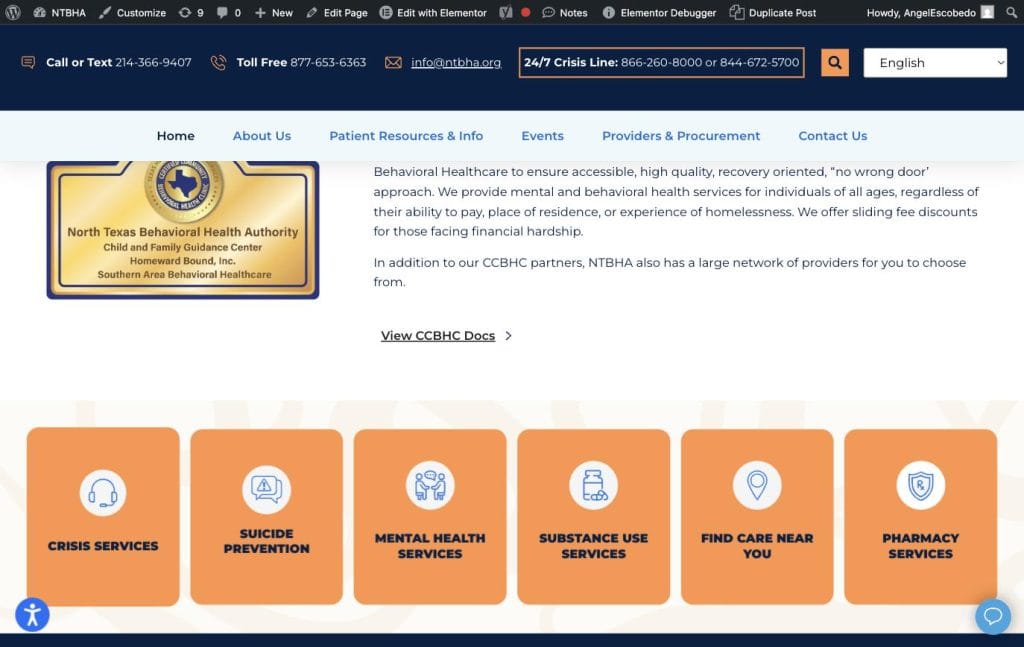
This page has two editable areas: the three blue Continuity of Care boxes near the top, and the CCBHC Documents accordion just below the CCBHC seal image. Both are edited in Elementor.
Updating the Blue Continuity of Care Boxes #
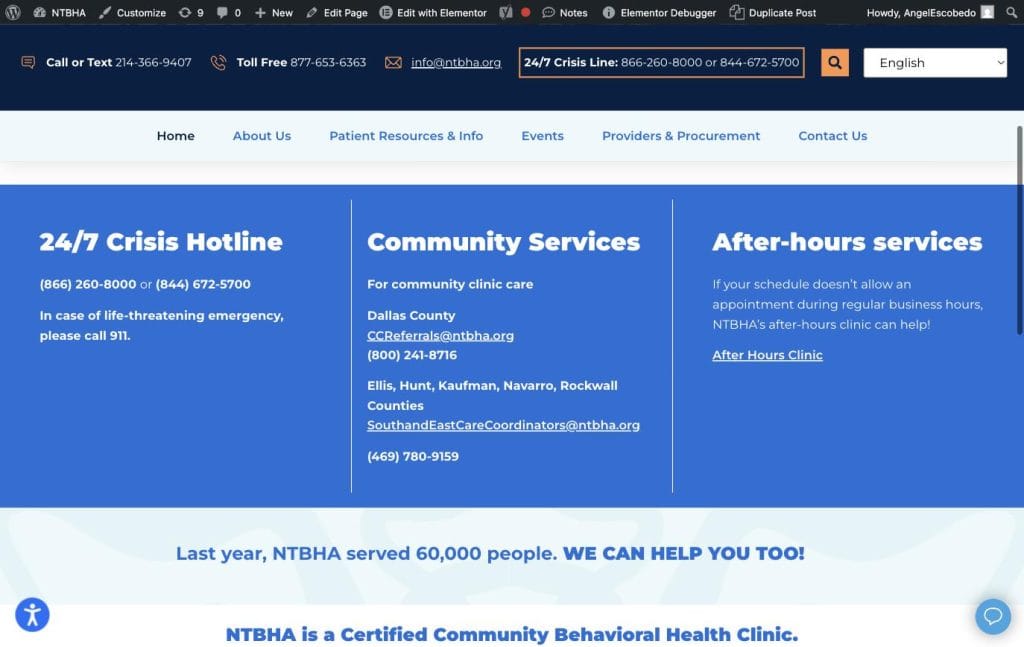
From wp-admin, go to Pages, find Home, and choose Edit with Elementor. Scroll to the blue three-column section (24/7 Crisis Hotline, Community Services, After-hours services). Click directly on the text you want to change, for example a phone number or email address. Elementor selects the Text Editor widget for that column and opens its settings panel on the left. Edit the text in the Visual tab like a normal word processor, then click the blue Update or Publish button in the top left to save. Only change the text inside a column, not the column layout itself.
Updating CCBHC Documents #
Scroll further down the Home page (still in Edit with Elementor) to the CCBHC seal image and the View CCBHC Docs accordion beneath it. Click once on the accordion body text (the list of linked PDF names) to select the Text Editor widget inside it. First upload any new PDF in the Add Media panel on the left, then in the Visual editor highlight the document name you want to link, click the link icon, and paste or select the uploaded file’s URL. To remove a document, delete its line from the list. Click Update to save.