Important: individual events are NOT managed in Elementor. They live in a separate calendar system called M.E. Calendar (The Modern Events Calendar), found in its own menu in the wp-admin sidebar. The static text and headings on the Events page itself are edited with Elementor like other pages, but Add/Remove Classes, Conferences, and Community Events all happen in M.E. Calendar.
The Three Event Categories #
The Events page has three sections that correspond exactly to three M.E. Calendar categories: NTBHA Classes & Trainings, Conferences & Workshops, and Community Events. When you add a new event you simply check the matching category and it will automatically show up in the right section of the website.
Adding a New Class, Conference, or Community Event #
In wp-admin, go to M.E. Calendar, then Add Event. Type the event title at the top and a description in the main content box, as shown below.
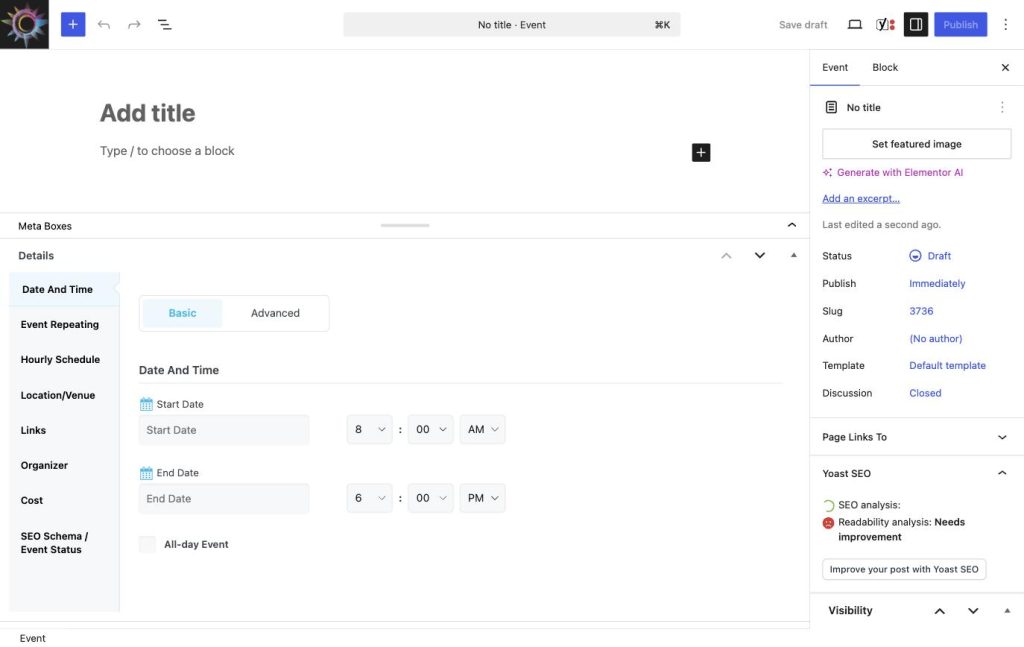
Then scroll down to the Meta Boxes / Details panel and click Date And Time to set the Start Date and End Date (and time). Click Location/Venue to add where it happens, and Organizer for contact info if needed.
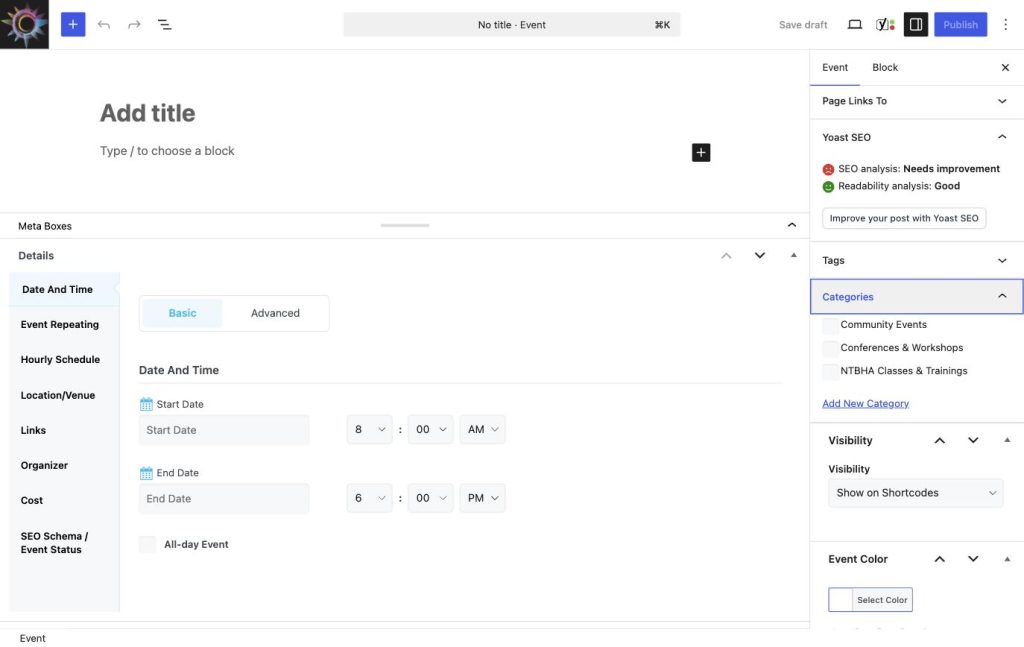
Finally, scroll further down the right-hand sidebar to Categories and check exactly one of the three boxes shown below (NTBHA Classes & Trainings, Conferences & Workshops, or Community Events) so it appears in the correct section of the Events page. Click Publish when finished.
Removing or Editing an Event #
In wp-admin, go to M.E. Calendar, All Events. Find the event in the list, hover over its title, and click Trash to remove it, or click the title to open and edit it (for example to change its date or description), then click Update.


