This page is edited with Elementor. Under the Resources heading there are three accordion items: Your Rights, Glossary, and Articles, Data, Reports & Studies. The Glossary item is a link that opens a separate Glossary page rather than expanding in place.
Editing, Adding, or Removing a Glossary Term #
Go to wp-admin, Pages, and open Glossary (it is a separate child page under Patient Resources & Info) with Elementor. The glossary is organized into four tabbed categories: Conditions & Diagnoses, Behavioral Health Professionals, Services, and Terminology. Each term is its own accordion item, shown on the live page below.
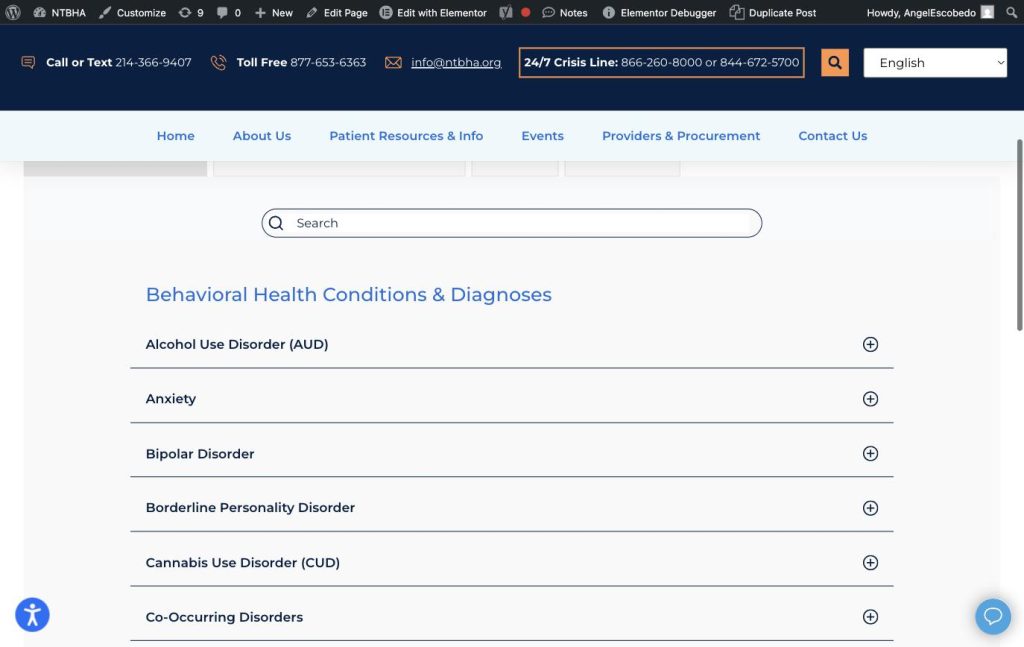
Click on any category tab (for example Conditions & Diagnoses), then click an existing term’s accordion row to select the Accordion widget in Elementor. In the left panel you will see a list titled Items with one entry per term. Click Add Item to create a new blank term, give it a Title (the term name), then click into its content area on the canvas and type the definition text. To remove a term, find it in the Items list on the left and click the X next to it. To edit a definition, expand that term and edit the text directly. Click Update to save. Do this within whichever of the four category tabs the term belongs to.
Adding or Removing Reports #
Back on the main Patient Resources & Info page, expand the Articles, Data, Reports & Studies accordion item and select its Text Editor widget. This is a simple linked list of PDFs, the same upload-and-link pattern used on the Home page for CCBHC documents: upload the report PDF in the Media Library, then add or edit a line of text and link it to that file. Delete a line to remove an old report.


