This doc covers items that appear the same way on every page of the site.
Correcting Typos and Editing General Text #
Open the relevant page with Edit with Elementor, click directly on the sentence or word with the typo, and it will select that Text Editor (or Heading) widget. Fix the text in the Visual tab exactly as you would in a word processor, then click Update. This same click-to-edit approach works for any plain text anywhere on the site.
The Orange Boxes and the Dark Footer #
The six orange action boxes (Crisis Services, Suicide Prevention, Mental Health Services, Substance Use Services, Find Care Near You, Pharmacy Services) and the dark navy footer below them, shown together below, appear identically at the bottom of every page.
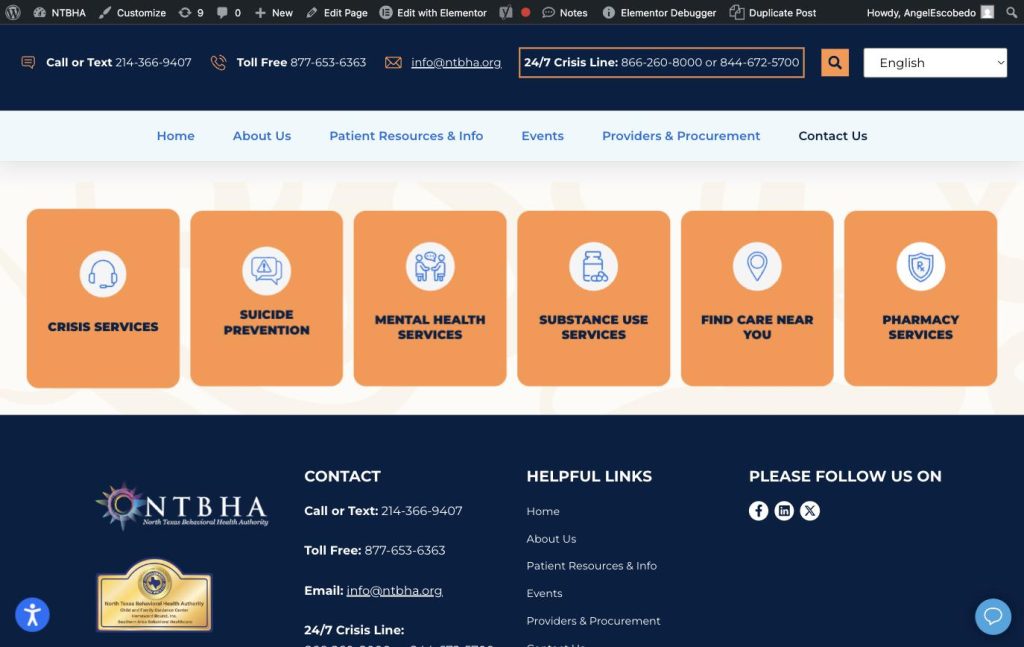
These are shared, global Elementor sections used across the whole site. Confirm during training whether they are a Theme Builder template (in which case one edit updates every page) or repeated per page; either way, use the same click-to-edit approach described above.
Adding or Removing a Provider from the Interactive Map #
Important: the interactive map is completely separate from the written Provider List pages. It is powered by a plugin called Store Locator, found in its own wp-admin menu. Updating the written provider list does NOT update the map, and updating the map does NOT update the written list; treat them as two separate to-do items whenever a provider changes.
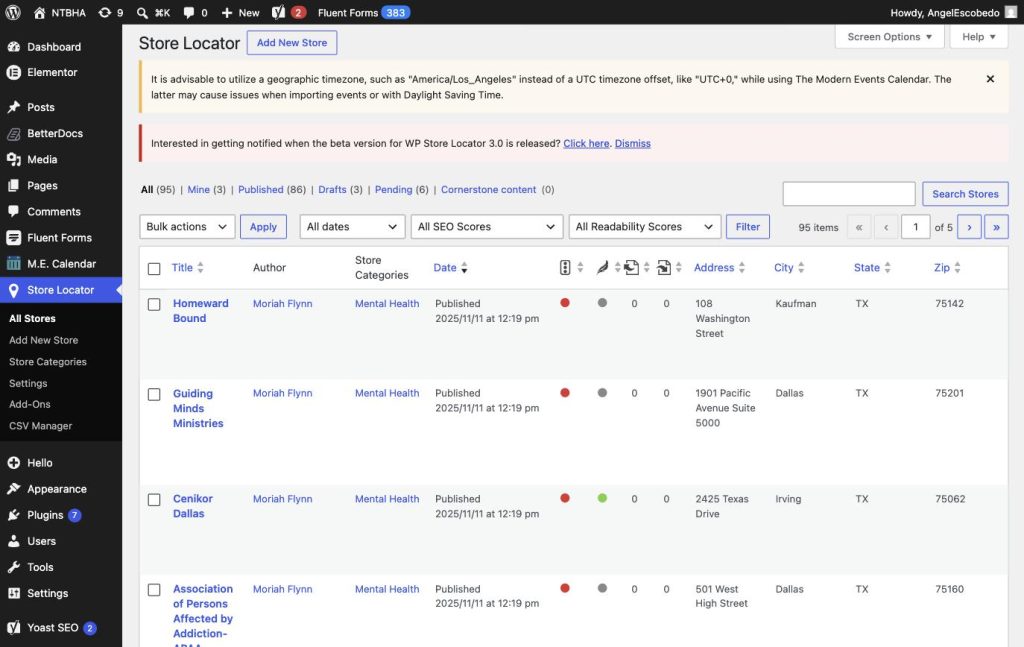
To view or remove a provider pin, go to wp-admin, Store Locator, All Stores, shown below. Find the provider and click Trash to remove them from the map.
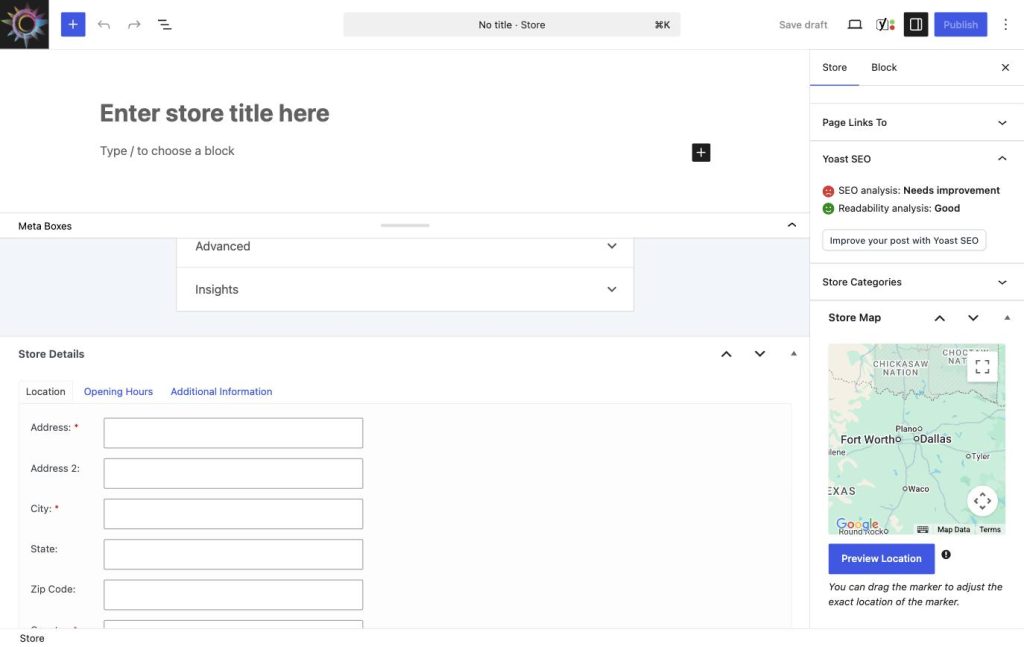
To add a new provider pin, click Add New Store. Give it a title (the provider name), choose a Store Category on the right (for example Mental Health), and fill in the Location tab shown below: Address, City, State, and Zip Code. There are also Opening Hours and Additional Information tabs for phone numbers and other details.